Guide · Planning
A to-do list widget for your iPhone Home Screen
Most to-do lists fail in a quiet way: you write them, close the app, and never look again. Out of sight is out of mind, and an app icon on page three is out of sight. A widget fixes the looking part. You unlock your phone dozens of times a day, and every time, there's your list. This guide covers what a good to-do widget actually does, how to add one to your Home Screen step by step, and a short, honest look at the options.
What a good to-do widget does
A widget is small, and that's the point. It can't hold everything, so the good ones are built around what fits in a glance. Here's what to look for:
- It shows today, not the whole backlog. A widget showing forty tasks shows you nothing; you'll learn to look past it within a week. The useful version shows the handful of things you meant to do today. Everything else can live inside the app.
- You can tick things off without opening the app. Since iOS 17, widgets can have buttons that work right on the Home Screen. A to-do widget without that is a poster. With it, finishing something takes one tap, and you see the list get shorter.
- It keeps your order. If you put the hard thing first on purpose, the widget should show it first, not re-sort by due date or creation time.
- Adding is fast. A thought you can't capture in a few seconds is gone. A good widget has a quick way into "add a to-do".
- It's calm when empty. A finished day shouldn't look like an error. No red, no alarm, no streak about to break.
- It fits the sizes you use. Most people have room for a medium widget (a wide strip) or a large one (a square half the screen). Small widgets usually have room for two lines, which is rarely enough for a list.
How to add a widget to your iPhone Home Screen
The steps are almost the same for every app. Apple has moved one button between versions, so here's both:
- Touch and hold an empty area of your Home Screen until the apps start to jiggle.
- Open the widget gallery. On iOS 18 and later, tap Edit in the top-left corner, then Add Widget. On iOS 17, tap the + button in the top corner.
- Search for the app by name, then tap it.
- Swipe to pick a size and, if the app offers more than one widget, the one you want.
- Tap Add Widget.
- Drag it where you want it, then tap Done.
Two things worth knowing. First, widgets can be stacked: drag one widget onto another of the same size and they share a spot, and you swipe between them. That's handy if you want a list and a calendar in the same space. Just remember that a list hidden in a stack is seen less often, so put the one you care about on top.
Second, Lock Screen widgets are a different thing. They're much smaller, they sit above or below the clock, and you set them from the Lock Screen itself (touch and hold it, then Customize). They have room for a line or a number, not a list. Everything in this guide is about the Home Screen.
The options, briefly
There's no single best to-do list widget for iPhone, only the one that matches how you already work. A few common choices, facts only:
- Apple Reminders. Built in and free. Its Home Screen widgets show a list, and on recent iOS versions you can tick items off from the widget. If you already use Reminders, start here; it costs nothing to try.
- Things 3. A paid app with a strong following, and it has Home Screen widgets.
- Todoist. Has a free tier and offers widgets.
- Calibrate. Our app; its Today widget is free. More on it below.
Apps change their widgets often, so check each App Store listing for current details before you choose. And if you're looking for a free to-do list widget for iPhone, the honest answer is that you already have one: Reminders. The question is whether a list that just sits there is enough, or whether you want the list to help you start.
Making the widget work for you
A widget only shows what you put in the app. A few habits make the difference between a list you glance at and a list you skim past:
- Keep today short enough to fit. If the widget shows five lines, a today of five lines means you see your whole day at a glance. A today of fifteen means the widget shows a random slice of it. Put the rest on another day or in a someday pile. (If your head is too full to choose, start with a brain dump and sort after.)
- Order on purpose. Whatever sits on top is what you'll see first, a few dozen times a day. Put the one thing that would make today a good day there, not the easiest chore.
- Write lines you can act on. "Thesis" on a widget is a wall. "Write the intro paragraph" is a door. If a to-do is too big to start, break it into small steps inside the app.
- Treat it as a glance, not a backlog. The widget is for "what am I doing today?", not for managing every project. Do the planning in the app, once, and let the widget just remind you of the result.
- Let an empty widget be good news. When the list is done, it's done. You don't need to refill it to feel productive.
There's a reason a short, visible list helps beyond convenience. Unfinished tasks tend to keep pulling at your attention, and in a 2011 study by Masicampo and Baumeister, writing a specific plan for an unfinished task largely removed that pull. A widget doesn't make the plan for you, but it keeps the plan you made in front of you, which is half the battle on a busy day.
How Calibrate does this
Full disclosure: this is our app. Calibrate is a calm focus timer inside a simple to-do list for iPhone and iPad, and its Today widget is built around the list above. It comes in medium and large. It shows "Today" and the date, then today's to-dos in the order you set (hold and drag a to-do on Today to move it), then the ones you've finished, with a tick.
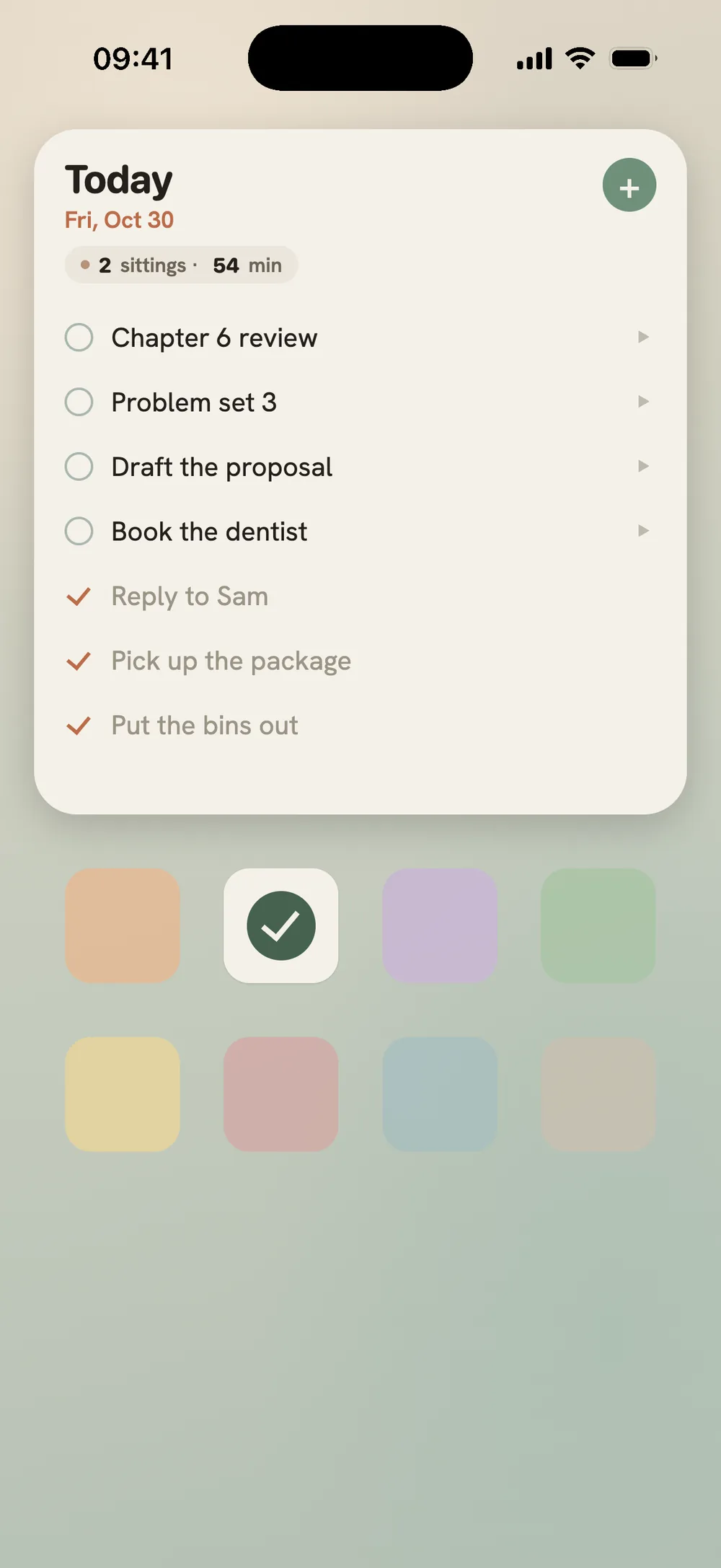
- Tick without opening. Tap a circle and the to-do is done, right there on the Home Screen.
- One tap to Today. Tap a line and the app opens on Today, where a swipe starts a focus session on that to-do, beginning, by default, with 3 minutes to just start that roll straight into your first block. The timer then runs on your Lock Screen, so the phone can stay locked while you work.
- Add quickly. The + opens the app ready for a new to-do.
- Yesterday, gently. If yesterday's unfinished to-dos are waiting, a small "Yesterday 3 ›" hint appears. Tap it and the app asks about each one: did it, carry it to today, or let it go.
The medium widget shows three lines and the large shows five, in large, easy-to-read type, which is a quiet nudge to keep today short. It stays paper-colored in light and dark mode. The widget is free, as are the to-dos and unlimited focus sessions. One honest limit: it's a Home Screen widget only. There's no Lock Screen to-do widget; what you see on the Lock Screen is the focus timer, as a Live Activity while a session runs.
To add it: install Calibrate from the App Store, add a few to-dos to Today, then follow the steps above. Search "Calibrate" in the widget gallery, choose Today, and pick medium or large.
Common questions
Can I put a to-do list on my iPhone Lock Screen?
Lock Screen widgets are a separate, much smaller kind of widget, set from the Lock Screen itself: touch and hold the Lock Screen, tap Customize, then choose the Lock Screen and tap the widget area. They hold a line or two of information at most, so they suit a count or a single next item better than a list. Some to-do apps offer one; check the app's App Store listing. Calibrate's to-do widget is a Home Screen widget, not a Lock Screen one.
Is there a free to-do list widget for iPhone?
Yes. Apple Reminders is built in and free, and its Home Screen widget shows a list. Todoist has a free tier with widgets. Calibrate's Today widget is free too, with no subscription needed for the widget, the to-dos or focus sessions.
Why won't my widget update?
iOS decides when widgets refresh, and it rations those refreshes. Opening the app usually brings its widget up to date. Low Power Mode can slow background updates, so check whether it is on. If a widget stays stuck, remove it and add it again, and make sure both iOS and the app are up to date.
Can I check off tasks from a widget?
Since iOS 17, widgets can have buttons that work without opening the app, so a to-do widget can let you tick items off right on the Home Screen. Whether a given widget does depends on the app. Apple Reminders does on recent iOS versions, and Calibrate's Today widget does: tap the circle and the to-do is done.
Keep reading
The ADHD to-do list · A daily intentions app · How to do a brain dump · How to break down a task · Best pomodoro apps for iPhone
Today, at a glance
Calibrate is on the App Store. Free to use, with unlimited focus sessions.
Get Calibrate